Install Arcturus Vision Sync on Mac or PC
Install the desktop app used to transfer and convert recordings captured with Arcturus Vision Camera.
Download link coming soon.
■Install on Mac
1. Open the Arcturus Vision Sync installer (disk image) on your Mac.
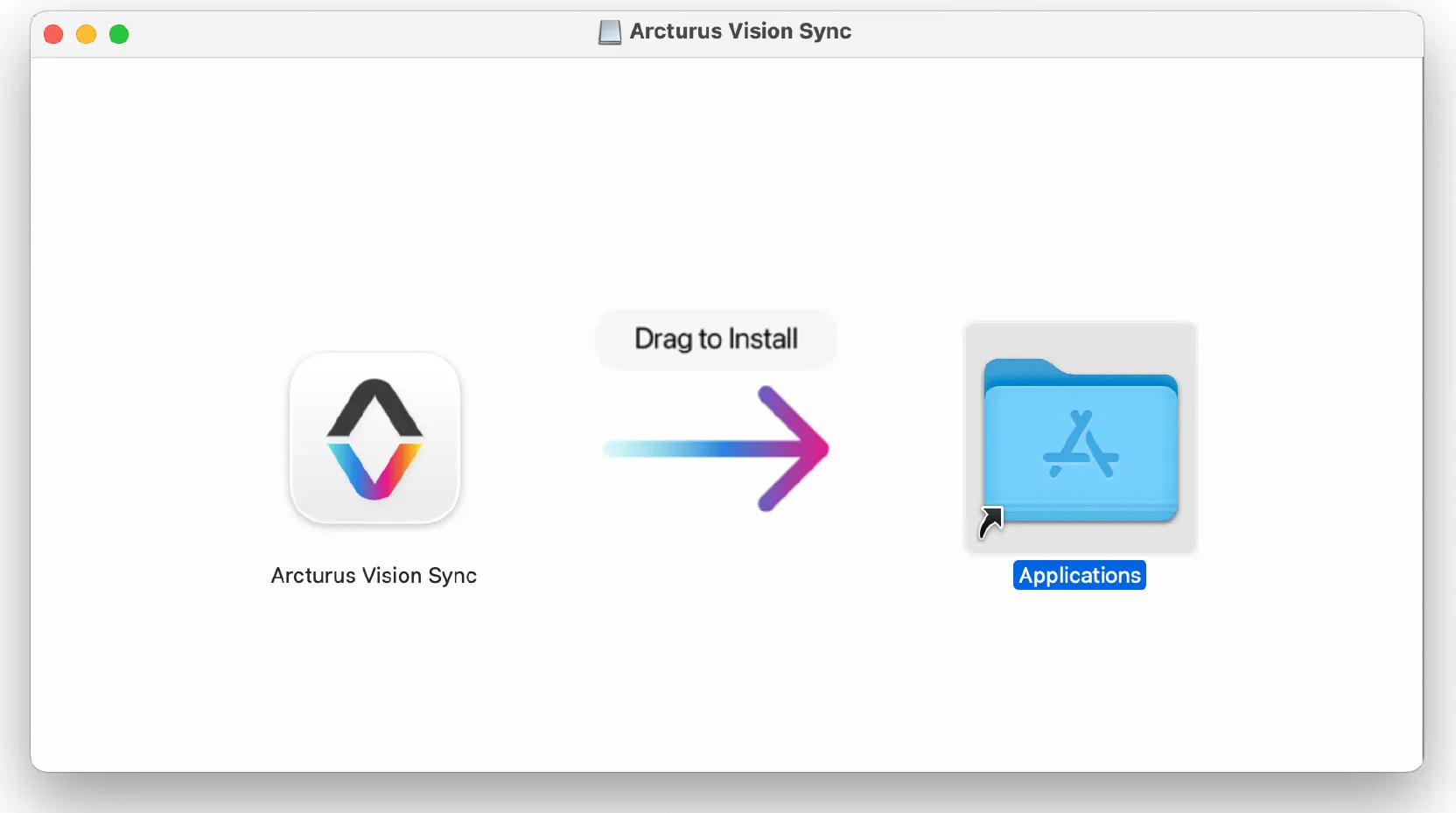
2. Drag Arcturus Vision Sync into the “Applications” folder.
3. Open the “Applications” folder and launch Arcturus Vision Sync.
Drag the app icon into the “Applications” folder to install it.
■Connect Steam Frame to Your Mac or PC
Connect your Steam Frame so that Arcturus Vision Sync on your Mac or PC can detect recordings saved by Arcturus Vision Camera.
1. On Steam Frame, go to “Settings” > “System” and turn on “Enable Developer Mode.”
2. Keep Steam Frame powered on and awake, then connect it to your Mac or PC using a USB cable.
3. Launch Arcturus Vision Sync and wait until the ADB connection status shows “Connected.”
4. Once the recording library appears, keep Arcturus Vision Sync open while files are being transferred.
Note: Enabling Developer Mode allows your Mac or PC to access files on Steam Frame. Only connect your Steam Frame to devices you trust.